


Measurement tools are available in CAD .NET Enterprise and CAD .NET trial.
Description of a Ready-Made Measurement Tool in CADEditorControlDemo
Uncomment the first line of CADEditorControlDemoForm.cs (#define Use_MEASURES) to see measurement buttons.
To activate measurement tools (Distance, Polyline Length, Area), raise click events assigned to buttons miDistance, miPolyLineLength, miArea. The buttons are located in the top navigation bar, Measure tab.
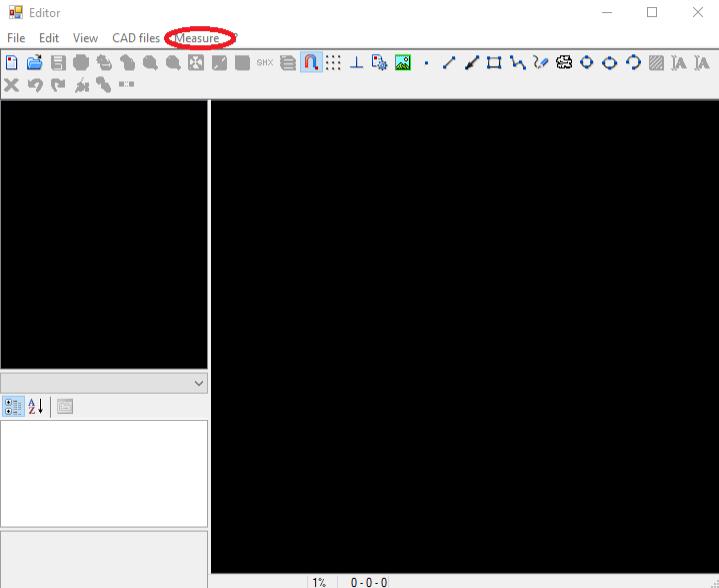
Fig. 1
The buttons are not active while cadImage == null, i. e. while an existing drawing is not opened or a new drawing is not created.
After opening an existing drawing or creating a new one, click any button in the Measure tab to open RulerForm window. It’s a CAD .NET form written to configure and show values of Measurement tools. (For adding and configuring measurement tools to your project, please follow to UseMeasuresDemo).
How to Use Measurement Tools
After choosing the tool, left-click the canvas at the spot where you want to start the measurement. The second click with a left mouse button marks the end of the measurement tool (for Distance) or the end of one segment and the beginning of the next one (for Polyline Length and Area).
To end Polyline Length or Area, click the mouse middle button.
Area draws a polygon and shows the area starting from the 3rd left mouse click.
To break the measurement tool or to clear the canvas, use Escape button.
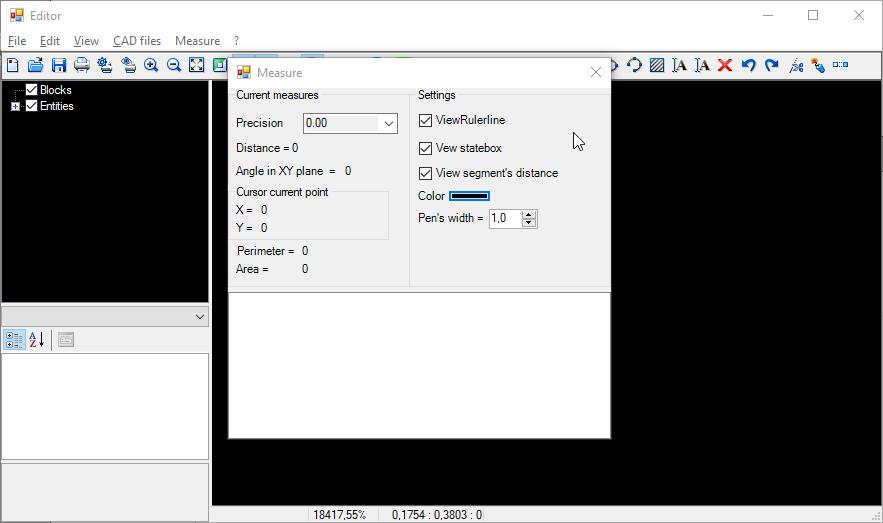
Fig. 2
RulerForm Description
There are two panels in the form:
Current measures – shows current status of the chosen tool; Settings — shows current rendering settings of the measurement tool on the canvas. At the bottom of the window, you’ll see ListBox control.
Current Measures
Precision shows tolerance, Distance shows the distance between the starting and the current points of the measurement segment, Angle shows the angle between the starting point and the end point of the segment about the X-axis; X and Y shows a current cursor coordinates on the canvas on mousemove event, Perimeter (appears when you choose Polyline Length or Area) is the sum of all measurement elements, Area (appears when you choose Area) shows the area.
Settings
ViewRulerLine – show/hide the line which appears when you move the mouse over the canvas (mouse_move event).
ViewStateBox – show/hide the value of the current segment distance which appears when you move the mouse over the canvas (mouse_move event).
View segment's distance – show/hide the value of the segment distances (for the last segment – show/hide perimeter (for Polyline Length), show/hide area (for Area)).
Color – choose tool color. By default, white is for black canvas, black is for white canvas. If a canvas color is changed, color by default is changed, too; you shall choose the color manually.
Pen's width – width of the measurement tool.
ListBox
ListBox control shows the value of the measurement segment as follows:
segment number | initial coordinates = (x, y) final coordinates = ( x, y) | distance = | angle = .
If Polyline Length is chosen, the following is added at the end: | Perimeter = .
If Area is chosen, the following is added at the end: | Perimeter = | Area = .
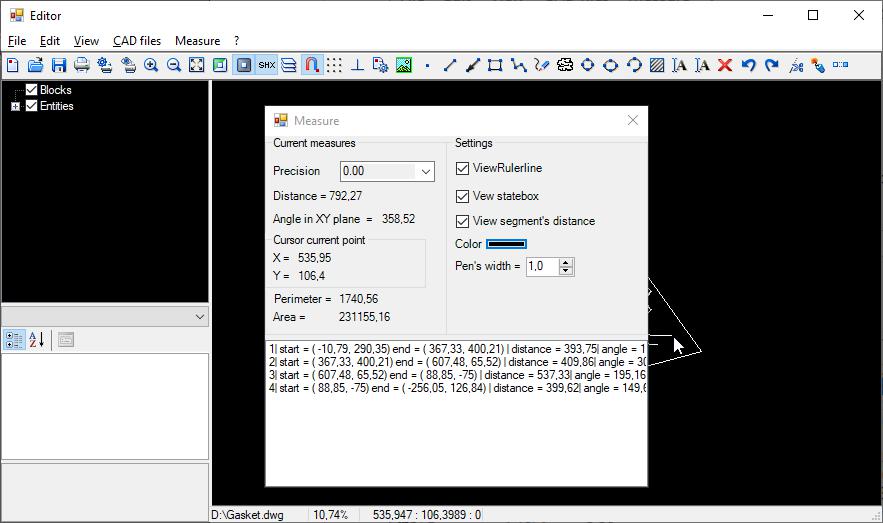
Fig. 3
After clicking the right mouse button, a command list appears in the ListBox control:
-
Copy Selected – to copy ListBox selected lines to clipboard. Selection is activated by the right ctrl or shift;
-
Save as Text – to open a popup window where you can choose the path for saving ListBox selected lines in text format.
-
Clear – to clear ListBox.
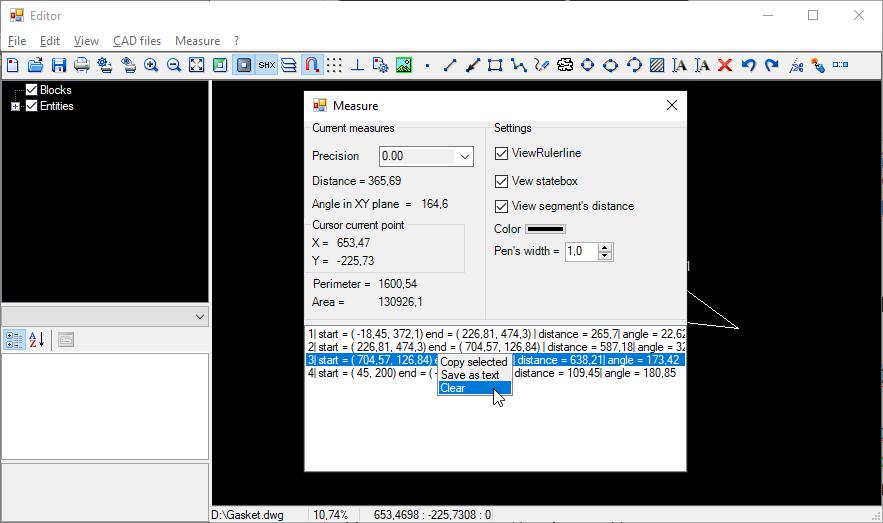
Fig. 4
How to Use Measurement Tools in UseMeasuresDemo
UseMeasuresDemo is added as an example of measurement tool customization. It shows how to add and configure the current measurement tool in the panel.
Uncomment the first code line in SimpleViewerForm.cs to turn on the directive (#define Use_MEASURES) and to activate Measurement Tools.
cadImage is required to use Measurement Tools. That's why the following code lines are added to SetCADImageOptions():
_measuresTools = MeasuresTools.getInstance(cadImage, cadPictBox);
_measuresTools.Image = this.cadImage;
SetMeasureTool();
When a new file or cadImage is created, cadImage will be created in _measuresTools. _measuresTools is created through a singleton pattern, i. e. it's created once, at the application start.
By default, SetMeasureTool() method turns on the distance when the file is opened. This method is also used to switch Measurement types using menu buttons (see demo).
Access to MeasuresTools functions is provided in UpdateMeasureSettings() via SetSettings interface.
public void UpdateMeasureSettings()
{
#if Use_MEASURES
if (CurrentMeasureTool == null) return;
CurrentMeasureTool.SetDefaultSettings();
CurrentMeasureTool.SetSettings().Precision = (Precision)cbPrecision.SelectedIndex;
CurrentMeasureTool.SetSettings().Color = colorDialog.Color;
CurrentMeasureTool.SetSettings().IsVisibleDrawingLine = cbIsVisibleDrawingLine.Checked;
CurrentMeasureTool.SetSettings().IsViewStateBox = cbIsViewStateBox.Checked;
CurrentMeasureTool.SetSettings().IsViewSegmentValue = cbIsViewSegmentDistance.Checked;
CurrentMeasureTool.SetSettings().PenWidth = (float)numPenWidth.Value;
#endif
}
This method is used for updating settings of a current Measurement Tool through pnMeasures panel.
The settings are updated when Color or Precision are changed or when a current CurrentMeasureTool is set (see demo).
Measurements are performed in real time according to the mouse movement on the cadPictureBox canvas, so we get functionality through the interfaces in the pnMeasures_Paint method, while the method connects to Paint event on the pnMeasures where the measurements are displayed. Redrawing (pnMeasures.Invalidate()) of the panel is triggered by the cadPictBox_MouseMove mouse event.
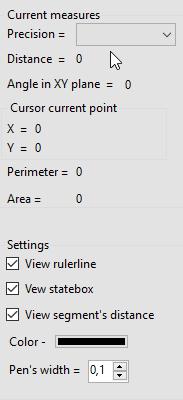
Fig.5 pnMeasures
private void pnMeasures_Paint(object sender, PaintEventArgs e)
{
#if Use_MEASURES
if (!pnMeasures.Visible) return;
lbDistanceValue.Text = CurrentMeasureTool.GetDistance().ToString();
//Cursor's current coordinate
lbXValue.Text = curPt.X.ToString();
lbYValue.Text = curPt.Y.ToString();
lbAngleValue.Text = CurrentMeasureTool.GetAngle().ToString();
if (CurrentMeasureTool is IPolyRulerMeasure)
{
lbPerimeterValue.Text = (CurrentMeasureTool as IPolyRulerMeasure).GetPerimeter().ToString();
}
if (CurrentMeasureTool is IAreaRulerMeasure)
{
lbAreaValue.Text = (CurrentMeasureTool as IAreaRulerMeasure).GetArea().ToString();
lbPerimeterValue.Text = (CurrentMeasureTool as IPolyRulerMeasure).GetPerimeter().ToString();
}
#endif
}
To define the tool's proper color (black or white) depending on the background color, we use event CurrentMeasureTool.SetSettings().OnChangeSettings, which is connected to method OnChangeMeasureSettings():
private void OnChangeMeasureSettings()
{
#if Use_MEASURES
btnColor.BackColor = CurrentMeasureTool.SetSettings().Color;
Invalidate();
#endif
}
See other settings in the demo.
